





How to Synchronize Product Brands Across the Shops in the network
WP Global Cart’s new Brands Synchronization option brings product brand data into the same reliable, automated synchronization flow you already use for titles, descriptions, categories and inventory. When enabled, brands assigned to a main (origin) product are copied to each synchronized child product — and if a brand term does not exist on the destination/child store, Global Cart will automatically create it there, keeping brand taxonomies consistent across your network.
What “Brands” means (short technical background)
WooCommerce added Brands as a first-class feature in core (introduced in October 2024). Brands are implemented as a custom taxonomy (the common taxonomy slug used is product_brand), so they behave very much like categories and tags: you can create brand pages, use brand blocks/shortcodes/widgets, and limit coupons by brand. Because Brands are a proper taxonomy, synchronizing them across sites is efficient and predictable. If your stores don’t yet have the Brands feature enabled, WooCommerce documents a quick enablement via a small update_option snippet or WP-CLI commands.
How to use Brands Synchronization (step-by-step)
- Open the product you want to synchronize in the WooCommerce product editor.
- Click the Product Sync tab (the same place you already manage Product Synchronization settings).
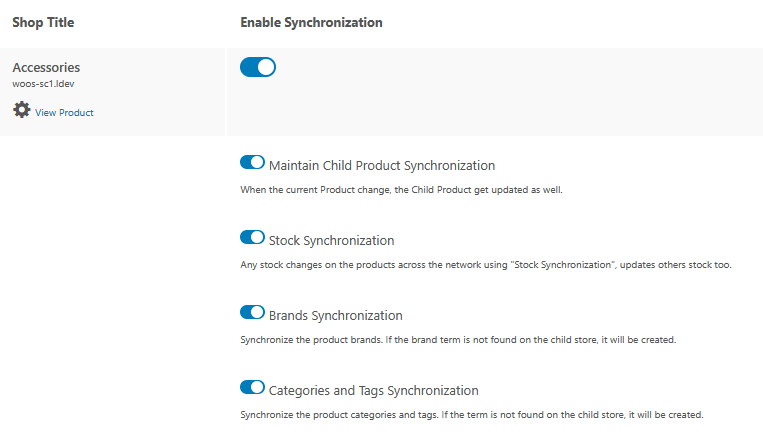
- Find the Brands Synchronization checkbox within the synchronization options (it sits alongside other toggles such as stock synchronization and metadata choices).
- Check Brands Synchronization to enable it for that product (or choose it as part of a bulk/product template if you manage many items).
- Save the product. WP Global Cart will then apply the selected sync options to the chosen target shops and create or assign brand terms on child stores as necessary.
Tip: for large catalogs use the Asynchronous Cron synchronization mode so brand creation and other operations run in batches to avoid timeouts.
What the feature does under the hood
- When a product is synced, WP Global Cart checks the origin product’s brand term(s).
- For each brand term, it looks up the same slug/term on the target child site.
- If the term exists, it assigns that brand to the child product.
- If the term does not exist on the child site, WP Global Cart creates the brand term there (name, slug and basic metadata), then assigns it — ensuring brand pages, filters and brand-based coupon rules work the same on every store.
This approach preserves brand slugs and avoids duplicated or mismatched brand entries across the network.
Why this helps your stores
- Consistent customer experience: shoppers see the same brand labels, brand pages and filters on all stores.
- SEO & structured data benefits: uniform brand taxonomies help with internal linking and can improve the accuracy of feeds (useful for Google Merchant and other channels that ask for brand data).
- Marketing & promotions: coupon rules or store features that depend on brands will behave consistently because brand terms exist and match across the network.
- Operational efficiency: no manual creation or reconciliation of brands on each child store — updates from the origin propagate where needed.
Developer notes & extensibility
WP Global Cart exposes filters so developers can tweak how the child product object is built before saving. For example, use the woogc/ps/synchronize_product/child_product filter to intercept and modify brand assignment behavior (map brand names, skip certain brands, add extra meta, etc.). This makes it possible to adapt synchronization to edge cases (custom brand fields, multilingual name mapping, or attribute-based brand workflows).
Enable Brands Synchronization for products where brand continuity matters (catalogs with brand-based navigation, Google Merchant feeds, or brand-specific promotions). Test on a staging network, and — if you have special mapping needs — use the available WP Global Cart filter hooks to customize the behavior. If Brands aren’t yet enabled in WooCommerce on a site, follow the WooCommerce guidance to enable them first.